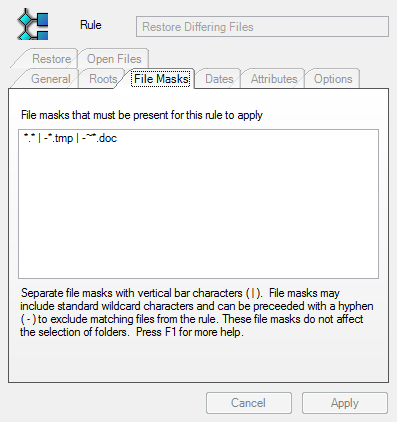
The File Masks panel in the Rule Wizard allows you to include or exclude files from the synchronization.
The default File Masks entry does the following:
*.* means that all files should be processed.
-*.tmp excludes any files ending with the .tmp file extension.
-~*.doc excludes Word document temp files.
You may modify this rule to include or exclude any files or file types from the synchronization. If you want all files to be included in the Rule including the temp files you would delete everything from the default entry except for "*.*". It is recommended to leave the -*.tmp and -~*.doc to avoid transferring temporary files that are not of any value to the other machines involved in the synchronization.
Entries in this wizard panel must be in the form of a file name. Path names are not allowed in this panel. File Masks you configure may include wildcards (for example * or ?). Multiple entries can be added at once by entering them into the text box and separating each mask by vertical bar characters ( | ).
You can filter based off of complete file names, partial file names with wildcards, or by file extensions.
Files are excluded by placing a minus sign (-) in front of the file mask in question.
Syntax Examples
If you want this Rule to synchronize only .doc and .xls files you would enter the following:
*.doc | *.xls
If you want this Rule to exclude .tmp files and a document named Document1.doc but process all other files you would enter the following:
*.* | -*.tmp | -Document1.doc
If you wish to exclude on a directory level, do not use file masks. Instead, exclude directories using the Rule Subfolder feature. You can define a Rule Subfolder on the previous wizard panel, simply click the 'Back' button to return to that panel and exclude the folder in question.
The 'Finish' button will finish the creation of the Rule and close the wizard. You will be returned to the SureSync desktop application.
At any stage before you finish, if you decide not to create a new Rule, click on the 'Cancel' button to exit the Rule Wizard without saving your settings, or you can click 'Back' and change any of the previous choices made in the Wizard.
Cancel & Apply
The 'Cancel' button will cancel any changes you made to this panel. The 'Apply' button will apply any changes you made to this panel.

 If you wish to exclude on a directory level, do not use file masks. Instead, exclude directories using the Rule Subfolder feature. You can define a Rule Subfolder on the previous wizard panel, simply click the 'Back' button to return to that panel and exclude the folder in question.